How do I add the Single Profile Widget to my course homepage?
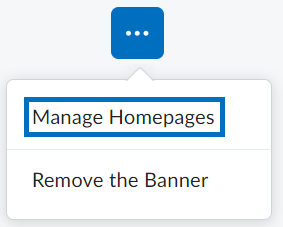
- From Course Home, scroll down to the bottom of the Course Overview widget. Click the Homepage Actions Menu and select Manage Homepages from the drop-down.
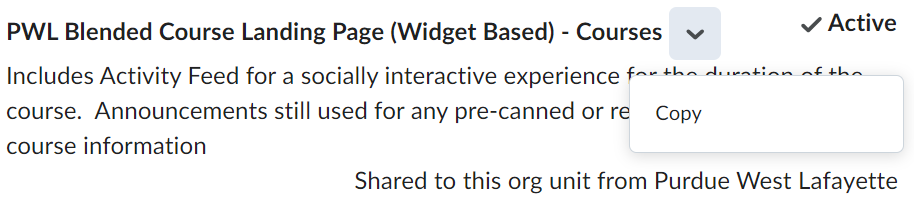
- Click the drop-down icon to the right of PWL Blended Course Landing Page (Widget Based) – Courses and select Copy from the drop-down.
- Click the new copy of the homepage.

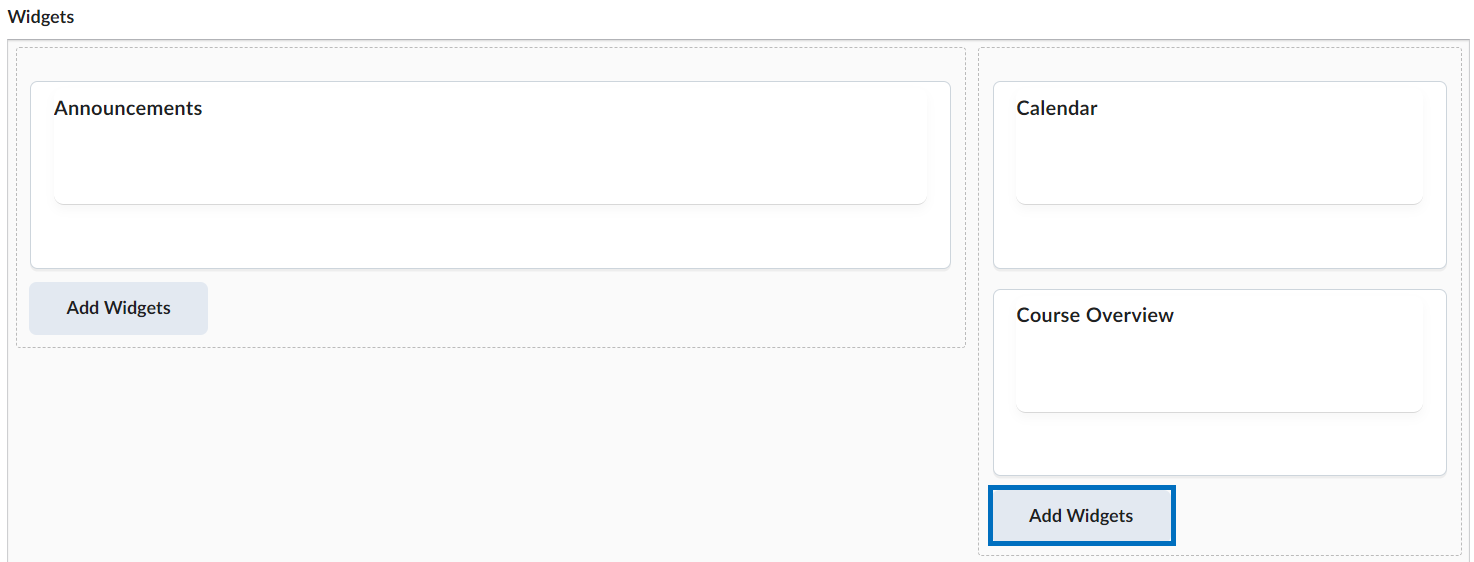
- Scroll down to the Widgets section and click Add Widgets under Course Overview.
- Check Single Profile Widget and click Add.

- Click Save and Close.
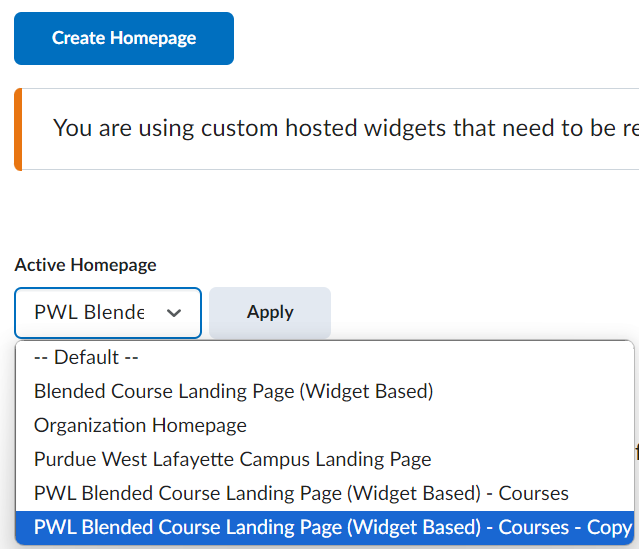
- Click the Active Homepage drop-down and select PWL Blended Course Landing Page (Widget Based) – Courses – Copy. Then click Apply.
- Click Course Home. Click the drop-down icon on the Single Profile Widget and select Configure this widget.

- Enter your information. Click Save when finished.
Last Updated: 11/4/2024